Your piece. Your puzzle picture.
From a loose piece to somewhere to look.
Puzzle Pointer is an iPhone helper for physical jigsaw puzzles. Give it the complete puzzle picture and a photo of one piece; inspect the area it returns before trying the fit.
Try 3 searches free on iPhone01 · Set up once per puzzle
Start with the full picture.
Use the puzzle’s barcode or box photo to look for catalogue artwork. Check that the returned picture is your puzzle before confirming it. Catalogue coverage is limited, and a similar title does not guarantee the same picture or edition.
If the puzzle isn’t found, use the artwork/photo option with a clear picture of the complete design. Photograph the front of the box or the included poster as squarely as you can. Keep the artwork’s corners visible, avoid reflections, and check the crop before continuing.
A half-finished board has gaps where the missing picture should be. Start with the complete reference artwork. Once saved, that reference can be reused for more pieces from the same puzzle.
02 · One piece at a time
Let the printed detail fill the photo.
- Put one piece flat on a plain surface, away from fingers and other pieces.
- Include every edge, tab and socket. Leave a little space around the piece.
- Use even light and check that fine printed details look sharp. Change the light angle if there is glare.
- Review the piece framing before searching. Retake a blurry or clipped photo instead of relying on it.
Keep the app open while the search processes. Timing varies; a clearer input is more useful than rushing through a poor photo.
03 · Compare before you place
Look at the artwork, then the board.
Here is one historical example from a 1,000-piece Dowdle Costco puzzle. The loose piece and the marked artwork belong to the same design. This comparison illustrates an approximate location; it is not an app screenshot or a guarantee for another piece.
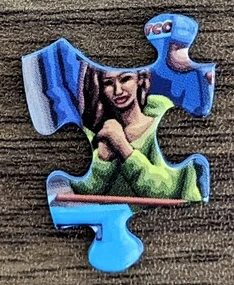
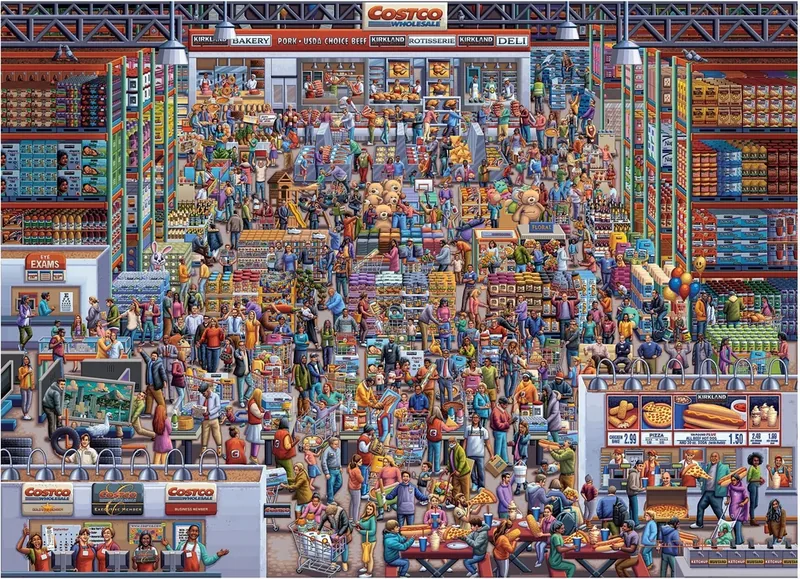
Zoom in and compare distinctive lines, color boundaries and small objects. Check how those details would continue onto neighboring pieces. If there are several possible areas, inspect them one at a time.
The app does not verify a mechanical fit. On the physical puzzle, the picture and the cut both need to agree. Don’t force a piece because its color looks close.
When the result isn’t useful
Try a clearer photo or another piece.
- The artwork is wrong or incomplete
- Go back to puzzle setup, confirm the right design, or retake the complete box/poster artwork. A sharper piece photo cannot fix the wrong reference.
- The piece photo is blurry, cropped or shiny
- Retake it with the whole outline visible. Move the light or phone to remove glare, and steady the camera before capture.
- The suggested area doesn’t match
- Use the app’s feedback and compare another offered area if available. A suggestion is a lead to inspect, not a confirmed placement.
- No area can be found
- Try a better reference or another piece with distinctive detail. Plain gradients, repeated motifs and tiny details can remain unresolved. You can return to manual sorting rather than repeat the same search.
For manual methods, read how to find where a jigsaw piece goes. For errors or account help, visit Support.